
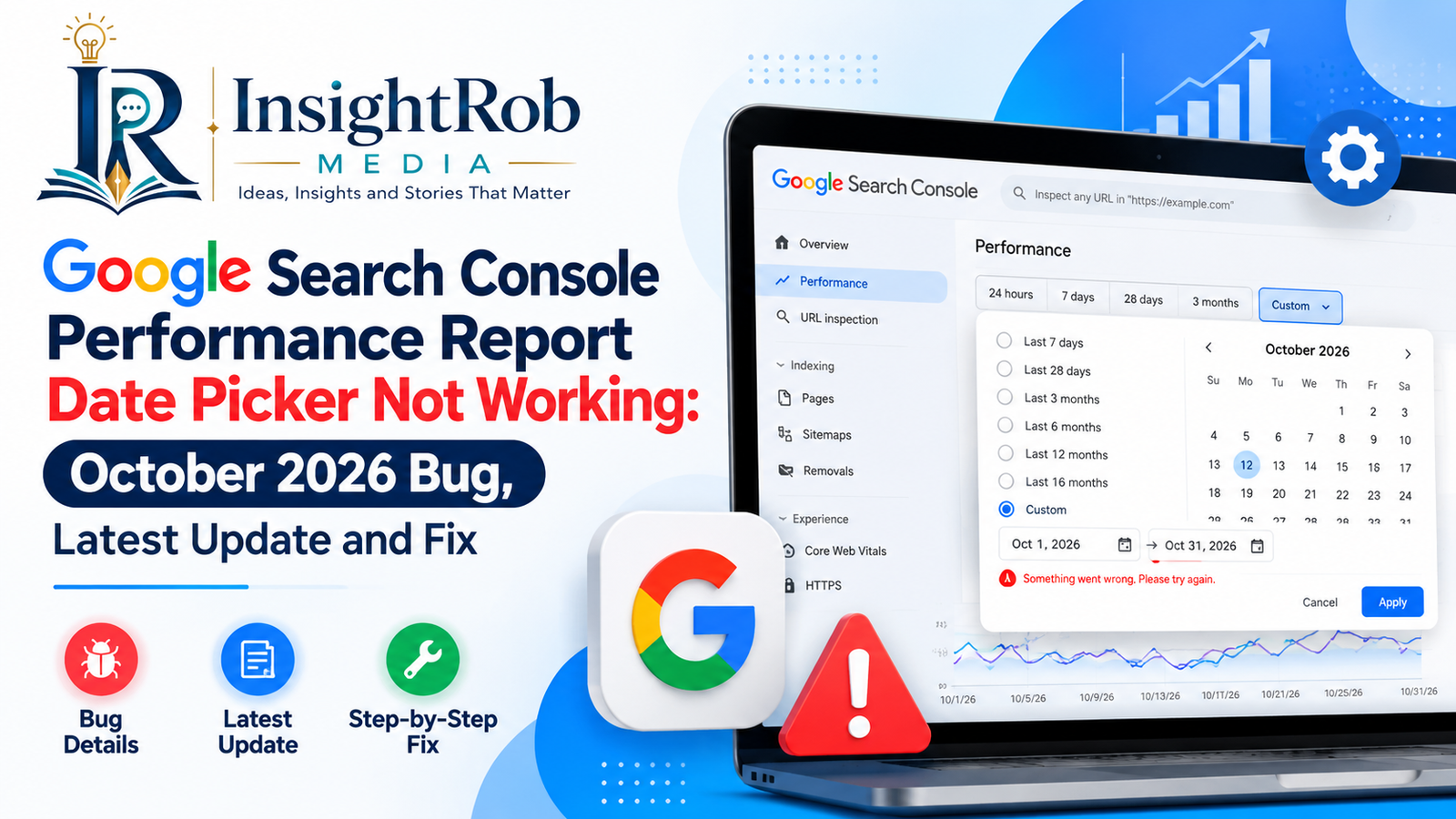
The Google Search Console Performance Report date picker not working issue caused confusion among website owners and SEO professionals on October 13, 2026. Users reported that the custom date range selector displayed incorrect dates, including December 31, 1969, and January 1, 1970.
As a result, some users could not select the required reporting periods or compare their website’s organic search performance.
The problem mainly affected custom date filtering. However, preset date options, including the last 7 days, 28 days and 3 months, reportedly continued working.
The good news is that industry reports confirmed a fix on October 13, 2026. Nevertheless, website owners experiencing similar problems should understand why the error appears and how to continue checking their SEO data.
In this article, we explain the latest Google Search Console date picker bug, its reported resolution, possible causes and practical troubleshooting methods.
What Happened to the Google Search Console Date Picker?
On October 13, 2026, several Google Search Console users experienced an unexpected problem while selecting custom date ranges in the Performance report.
Instead of displaying the selected reporting period, the calendar showed dates from 1969 or 1970.
Some users encountered the following error message:
Date can’t be after 1969-12-31.
Consequently, affected users could not apply their preferred custom date ranges.
For example, an SEO professional attempting to compare website traffic between September 1 and September 30, 2026, might have been unable to generate the required report.
The issue attracted attention because date comparisons are essential for evaluating SEO campaigns, content performance and search visibility.
According to reports published by Search Engine Roundtable and Search Engine Land, the problem affected the custom date selection functionality rather than the entire Performance reporting system.
Google Search Console Date Picker Bug: Latest Update
As of October 14, 2026, the main October 13 date picker issue had been reported fixed.
Search Engine Land and Search Engine Roundtable updated their coverage after the problem was resolved at approximately 9:00–9:10 a.m. Eastern Time on October 13.
However, an isolated user report on October 14 described similar problems while using custom comparison dates. That report does not establish a new widespread outage.
Here is a summary of the incident:
| Details | Information |
| Issue reported | October 13, 2026 |
| Affected platform | Google Search Console |
| Affected section | Performance Report |
| Main problem | Custom date range selection |
| Error displayed | Date can’t be after 1969-12-31 |
| Incorrect dates | December 31, 1969 / January 1, 1970 |
| Preset date filters | Reportedly working |
| Latest status | Main issue reported fixed on October 13 |
| Ranking impact | No direct impact established |
Although the reported fix resolved the main incident, users should check their dashboards individually if they continue experiencing similar errors.
Why Is Google Search Console Showing a 1969 or 1970 Date?
The appearance of dates from 1969 or 1970 may be related to timestamp handling.
Many software systems use the Unix epoch, which begins on January 1, 1970, at midnight UTC.
When an application incorrectly interprets a timestamp or default date value, it may display a date near the Unix epoch.
For example, timezone conversion can cause the beginning of January 1, 1970, UTC to appear as December 31, 1969, in certain regions.
This is one possible technical explanation for the unusual dates displayed in Search Console.
However, Google has not publicly confirmed that Unix timestamp conversion caused the October 2026 incident.
Therefore, the exact cause should not be treated as established.
How to Fix Google Search Console Date Picker Not Working
If the custom date selector still does not work, several troubleshooting methods can help identify the problem.
1. Refresh the Google Search Console Dashboard
First, refresh your browser and reopen the Performance report.
Follow these steps:
- Visit Google Search Console.
- Select your website property.
- Open the Performance section.
- Click the Date filter.
- Select Custom.
- Choose the required start and end dates.
- Check whether the Apply button works.
A refresh may resolve a temporary interface issue, especially after a Google-side fix has been deployed.
2. Use Preset Date Range Filters
If custom date selection fails, use the available preset options.
Google Search Console provides several date filters, including the last 24 hours, 7 days, 28 days, 3 months, 6 months, 12 months and 16 months.
These filters remained useful during the October 13 incident.
For example, selecting the last 28 days can help you review recent clicks, impressions, average CTR and search positions.
Although preset filters may not provide the exact dates you need, they offer a practical temporary alternative.
3. Try Incognito Mode or Another Browser
Sometimes, stored browser data or extensions can interfere with a website’s interface.
Open Search Console in an incognito window and test the custom date filter.
You can also try Microsoft Edge, Firefox or another updated browser.
If the problem occurs across multiple browsers, it becomes less likely that a single browser setting is responsible.
However, changing browsers will not repair an actual server-side Google bug.
4. Clear Browser Cache
Outdated cached files can occasionally cause interface problems.
If refreshing and using incognito mode does not help, try clearing cached site data.
Then sign in to Google Search Console again and check the date selector.
Avoid clearing all saved browser information unnecessarily. Start with the affected website’s cached data.
5. Check Google Search Console Service Updates
Before changing your website settings, check whether other users have reported the same problem.
You can review Google’s official Search Status Dashboard and trusted SEO news publications.
This helps distinguish an individual browser issue from a broader service problem.
Keep in mind that not every Google Search Console interface error receives its own official status announcement.
6. Report the Date Picker Problem to Google
If the issue continues, submit feedback directly through Google Search Console.
Include the affected report, the incorrect date, the error message and your browser information.
If possible, attach a screenshot.
You should also mention whether preset date ranges work and whether the error appears while comparing two custom reporting periods.
Accurate feedback can help Google investigate the problem.
Does the Google Search Console Date Picker Bug Affect Website Rankings?
The Google Search Console date picker bug does not directly indicate a ranking problem.
Google Search Console is a reporting and monitoring platform. It allows website owners to analyze search performance, indexing information and other website metrics.
However, a broken reporting feature does not automatically mean that Google has changed how it ranks your website.
For example, if the date picker stops working, your webpages may still appear normally in Google Search results.
Similarly, organic visitors may continue accessing your website even when you cannot generate a custom Performance report.
Google recommends examining changes in clicks, impressions, queries and pages when investigating genuine organic traffic declines.
Therefore, avoid modifying your website’s SEO strategy solely because a reporting filter displays an error.
How to Check Website Performance Without Custom Date Filters
Accurate performance reporting is important for businesses, SEO agencies and website owners.
If the Google Search Console date range is not working, alternative reporting methods can help you continue monitoring SEO results.
Use Google Search Console Preset Reports
The easiest solution is to select a preset reporting period.
For example, the last 28 days option provides a useful overview of recent organic search performance.
You can analyze total clicks, impressions, average CTR and average position.
Additionally, you can review which pages, queries, countries and devices generate search visibility.
Connect Google Search Console to Looker Studio
Looker Studio allows users to create customized reporting dashboards.
By connecting Search Console data, website owners can monitor organic traffic trends through visual reports.
This approach is particularly useful for SEO agencies that manage multiple clients.
However, report functionality depends on the connected data source and its availability.
Use the Google Search Analytics API
Developers and advanced SEO professionals can use the Search Analytics API to request performance data programmatically.
The API supports querying data for selected dates, subject to Google’s reporting limits.
As a result, businesses can build automated reporting systems instead of depending entirely on the Search Console dashboard.
Why Is the Date Range Feature Important for SEO?
The Google Search Console date selector helps businesses understand how their websites perform over time.
For example, an SEO team may want to compare organic traffic before and after publishing a new blog.
Similarly, an eCommerce website may analyze impressions and clicks during a seasonal sales campaign.
Custom date comparisons help identify improvements, declines and possible patterns.
The following metrics are particularly useful:
| SEO metric | What it tells you |
| Total clicks | How many clicks your site received from Google Search |
| Total impressions | How often your website appeared in search results |
| Average CTR | The percentage of impressions that resulted in clicks |
| Average position | Average ranking position across eligible impressions |
| Top queries | Search terms generating visibility |
| Top pages | Pages attracting search traffic |
Without accurate date selection, identifying performance changes becomes more difficult.
Moreover, SEO professionals often need custom reporting periods when evaluating monthly campaigns or comparing year-over-year performance.
Therefore, even a short-term reporting issue can interrupt important SEO analysis.
How to Avoid Google Search Console Reporting Problems in the Future
Although website owners cannot prevent every Google-side technical error, a reliable reporting process can reduce disruption.
First, maintain regular backups or exports of important SEO reports. This can help preserve historical performance comparisons.
Second, use Google Analytics alongside Search Console to develop a broader understanding of website traffic and user engagement.
Third, monitor Google Search Central announcements for changes in reporting features.
Fourth, document major website changes, including content updates, migrations and technical SEO improvements.
Finally, remember that Google Search Console data may sometimes be preliminary or delayed. Google’s 24-hour view can show incomplete recent data while processing continues.
By following these practices, SEO teams can make better decisions even when a particular reporting feature becomes temporarily unavailable.
Frequently Asked Questions
1. Why is my Google Search Console date picker not working?
The October 13, 2026, issue involved a bug that prevented affected users from choosing custom date ranges. If the problem continues today, check your browser and look for any new Google-side incident.
2. Is the Google Search Console date picker fixed?
Yes. The main October 13, 2026, issue was reported fixed that morning. However, users experiencing similar problems should check whether their particular reporting issue has been resolved.
3. Why does Google Search Console show the year 1969?
The appearance of 1969 may be associated with timestamp handling near the Unix epoch. However, the exact cause of the October 2026 bug has not been publicly confirmed.
4. How do I fix the Google Search Console custom date range error?
Refresh your dashboard, try another browser, check preset date filters and review Google service information. If the problem continues, submit feedback through Search Console.
5. Does the date picker error affect Google rankings?
The reported interface problem does not directly indicate a change in rankings. Website owners should investigate actual traffic or position changes separately.
6. Can I still access website performance reports?
Yes. During the incident, preset date filters continued working. Looker Studio and the Search Analytics API can also support reporting.
7. Why is the Apply button not working in Google Search Console?
The Apply button may remain unavailable when the selected date range is invalid. During the October 2026 incident, incorrect dates prevented some users from selecting valid custom reporting periods.
8. Can I compare website traffic without using custom dates?
Yes. You can try preset comparison periods, use Looker Studio or analyze data retrieved through the Search Analytics API.
9. Is the Google Search Console date picker issue affecting everyone?
There is no evidence that every Search Console user experienced the error. Reports confirmed the problem among affected users, but the full extent was not established.
10. Where can I check the latest Google Search Console updates?
Check the Google Search Status Dashboard, Google Search Central and established SEO news publications for confirmed developments.
Final Thoughts
The Google Search Console Performance Report Date Picker Not Working issue briefly affected custom date selection on October 13, 2026.
The bug caused some users to encounter incorrect dates from 1969 or 1970, making custom performance comparisons difficult.
Fortunately, the primary issue was reported fixed the same day.
If you experience similar problems, use preset reporting periods, test basic browser troubleshooting methods and check for new service updates.
Most importantly, remember that a temporary reporting error does not necessarily indicate a website ranking or indexing problem.
Stay connected with InsightRob Media for the latest Google updates, SEO news, technical SEO guides and digital marketing insights.